React Native Maps Integration
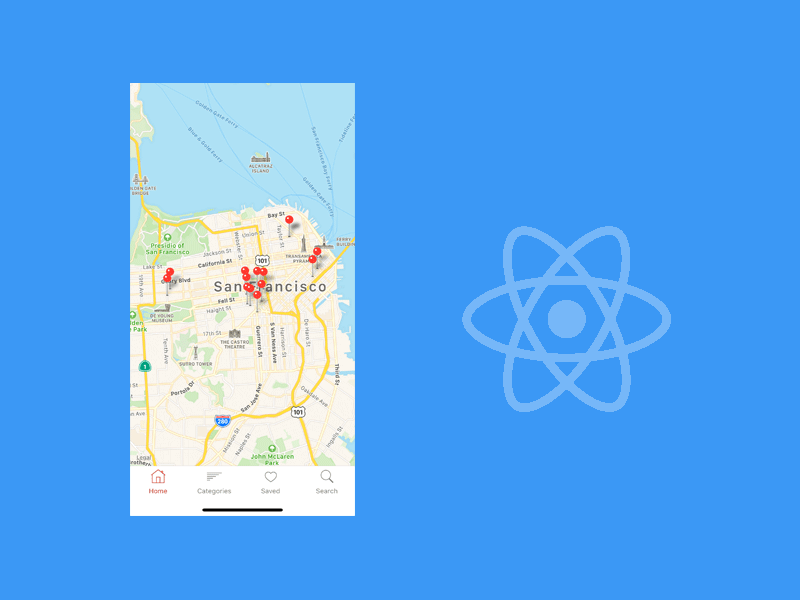
Maps are a core part of many React Native apps: taxi booking, food delivery, real estate listings, store locators, local marketplaces, travel apps, fitness tracking, and social discovery all need some form of map display.
This guide shows the current way to think about React Native maps integration: choose a map provider, configure platform keys, render a stable map, request location only when needed, and control API usage before release.
Quick Answer
Use react-native-maps when you need native maps in a React Native app:
import MapView, { Marker } from 'react-native-maps';

const initialRegion = {
  latitude: 37.7749,
  longitude: -122.4194,
  latitudeDelta: 0.05,
  longitudeDelta: 0.05,
};

export function ListingsMap() {
  return (
    <MapView style={{ flex: 1 }} initialRegion={initialRegion}>
      <Marker
        coordinate={{ latitude: 37.7749, longitude: -122.4194 }}
        title="Featured listing"
      />
    </MapView>
  );
}
Use Google Maps when you need Google-specific features or consistent Google map rendering across platforms. Use the native iOS provider when Apple Maps is enough and you want less Google Maps setup on iOS.
Choose a Map Provider
react-native-maps abstracts a lot, but the underlying provider still matters.
| Provider | Best for | Notes |
|---|---|---|
| Apple Maps on iOS | Standard iOS map display with fewer Google dependencies | Simpler iOS setup, but not feature-identical to Google Maps. |
| Google Maps on Android | Standard Android map rendering | Requires a Google Maps API key and Google Play services. |
| Google Maps on iOS | Consistent Google Maps behavior on both platforms | Requires Google Maps SDK setup and an iOS API key. |
Choose based on product needs, not habit. A real estate app with simple pins may not need the same setup as a taxi app with route previews, driver tracking, and Places search.
Ship faster with All Access. Get the React Native templates, admin panels, updates, and launch bonuses that help you build faster.
Explore All AccessInstall react-native-maps
Use the package manager and version strategy in your app:
corepack yarn add react-native-maps
For iOS native projects:
cd ios
pod install
For Expo config plugin setups, follow the current react-native-maps plugin
documentation and add platform keys through app config. Keep the app's package
versions as the source of truth.
Configure Android
Android uses Google Maps. Add a Google Maps API key to the app manifest:
<application>
  <meta-data
    android:name="com.google.android.geo.API_KEY"
    android:value="YOUR_ANDROID_MAPS_KEY" />
</application>
In Google Cloud Console:
- enable the Maps SDK for Android;
- restrict the key to Android apps;
- restrict by package name and signing certificate fingerprint;
- restrict the key to the APIs the app actually uses;
- enable billing;
- set quotas and budget alerts.
Use separate keys for Android, iOS, and backend route/geocoding services. It makes debugging, restriction, rotation, and billing analysis much cleaner.
Configure iOS
On iOS, decide between Apple Maps and Google Maps.
If you use Apple Maps, the basic map provider is simpler.
If you use Google Maps on iOS:
- enable the Maps SDK for iOS;
- use an iOS-restricted Google Maps key;
- add the Google Maps SDK setup required by
react-native-maps; - make sure the native deployment target and Podfile match the library's current requirements;
- add a location usage string when the SDK or your app accesses user location.
Example iOS location purpose string:
<key>NSLocationWhenInUseUsageDescription</key>
<string>Allow location access to show nearby listings on the map.</string>
Do not add Always location permission unless the app has a real background
location feature.
Render a Stable Map
Maps need explicit dimensions. A blank map is often a layout issue, not an API issue.
import { StyleSheet, View } from 'react-native';
import MapView, { Marker, PROVIDER_GOOGLE } from 'react-native-maps';

const region = {
  latitude: 40.7128,
  longitude: -74.006,
  latitudeDelta: 0.08,
  longitudeDelta: 0.08,
};

export function MapExample() {
  return (
    <View style={styles.container}>
      <MapView
        provider={PROVIDER_GOOGLE}
        style={styles.map}
        initialRegion={region}
      >
        <Marker coordinate={region} title="New York" />
      </MapView>
    </View>
  );
}

const styles = StyleSheet.create({
  container: {
    flex: 1,
  },
  map: {
    flex: 1,
  },
});
If the map container has no height, the map has no visible surface.
Showing the User Location
showsUserLocation is convenient, but it is not a substitute for a permission
flow. Ask for permission first and handle denial.
import { useEffect, useState } from 'react';
import MapView from 'react-native-maps';
import * as Location from 'expo-location';

export function CurrentLocationMap() {
  const [canShowUser, setCanShowUser] = useState(false);

  useEffect(() => {
    async function requestLocation() {
      const permission = await Location.requestForegroundPermissionsAsync();
      setCanShowUser(permission.status === 'granted');
    }

    requestLocation();
  }, []);

  return (
    <MapView
      style={{ flex: 1 }}
      showsUserLocation={canShowUser}
      showsMyLocationButton={canShowUser}
    />
  );
}
When permission is denied, show a manual search, saved address, or map picker fallback. Do not trap the user on a blank location screen.
Markers, Clustering, and Lists
For a few locations, markers are enough:
{locations.map((location) => (
  <Marker
    key={location.id}
    coordinate={{
      latitude: location.latitude,
      longitude: location.longitude,
    }}
    title={location.title}
  />
))}
For many locations:
- cluster markers;
- load only visible-region results;
- debounce region changes;
- avoid rendering hundreds of custom marker views at once;
- pair the map with a list or bottom sheet;
- cache place/listing data separately from map viewport state.
This matters for real estate, store locator, delivery, and marketplace apps.
Routes, Geocoding, and Places
The map view is only one part of a location product.
| Feature | Typical API |
|---|---|
| Display map tiles and markers | Maps SDK |
| Convert address to coordinates | Geocoding or Places |
| Search addresses or businesses | Places / autocomplete provider |
| Draw route along roads | Routes API or another routing provider |
| Estimate distance/time | Routes or Distance Matrix-style provider |
Do not fire paid API calls on every keystroke or map movement. Debounce input, cache results, and use server-side endpoints when you need to protect keys or control usage.
For route drawing, see Draw Directions on Maps in React Native.
Cost and API Key Checklist
Before release:
- Billing is enabled intentionally.
- Separate keys exist for Android, iOS, and backend services.
- Android key is restricted by package name and signing certificate.
- iOS key is restricted by bundle identifier.
- Backend key is restricted by server/IP where possible.
- Keys are restricted to the APIs they need.
- Quotas are set.
- Budget alerts are configured.
- Usage is monitored after launch.
- The app does not call geocoding, Places, or routing APIs in tight loops.
Maps can be cheap for low-volume apps and expensive for high-volume products. Design the usage pattern before launch.
Release Checklist
Test on real devices:
- map renders on iOS;
- map renders on Android;
- denied location permission state works;
- approximate location state works where applicable;
- API key restrictions work on signed release builds;
- routes/geocoding/Places work in the production environment;
- app store privacy disclosures mention location and maps behavior accurately;
- Firebase, maps, and backend costs are monitored.
For broader app release work, use the React Native App Release Checklist.
Useful Links
- React Native Location Services
- Draw Directions on Maps in React Native
- Location Core Module
- Taxi App Getting Started
- Real Estate App Getting Started
- Uber Eats Order Tracking
- react-native-maps installation docs
- Google Maps Platform API security guidance
- Google Maps Platform pricing overview
Looking for a custom mobile application?
Our team of expert mobile developers can help you build a custom mobile app that meets your specific needs.
Get in TouchFAQ
Does react-native-maps require Google Maps on iOS?
No. iOS can use the native Apple Maps provider. Use Google Maps on iOS only when the product needs Google-specific behavior or consistent Google rendering across both platforms.
Why is my map blank?
Common causes are missing map dimensions, invalid API key, disabled Maps SDK,
incorrect key restrictions, missing billing, or using PROVIDER_GOOGLE without
the native Google Maps setup.
Do maps require location permission?
A map with fixed markers does not require location permission. You need location permission only when showing or using the device's current location.
Should Google Maps API keys be hidden?
Mobile SDK keys are usually embedded in apps, so they must be restricted by platform, app identifier, signing fingerprint where applicable, and API. Server keys should stay on the backend.
Conclusion
React Native maps integration is not just installing a package. Choose the map provider intentionally, configure platform keys correctly, ask for location only when needed, monitor cloud usage, and test signed release builds on real devices.