Apple Login in React Native with Firebase
Sign in with Apple is a common requirement for React Native apps that offer third-party login options such as Google, Facebook, LinkedIn, or Amazon. It also gives iOS users a privacy-friendly authentication option that works well with Firebase Authentication.
Quick Answer
To add Apple Login to a React Native app with Firebase:
- Enable Sign in with Apple in Apple Developer.
- Enable the Apple provider in Firebase Authentication.
- Add the Sign in with Apple capability to the iOS app target.
- Install
@react-native-firebase/auth. - Install
@invertase/react-native-apple-authentication. - Request an Apple identity token and nonce.
- Create a Firebase Apple credential and call
signInWithCredential. - Save profile data on first login because Apple only returns name and email during the first authorization.
Enable Apple in Firebase
Open Firebase Console, go to Authentication, then Sign-in method, and enable Apple.
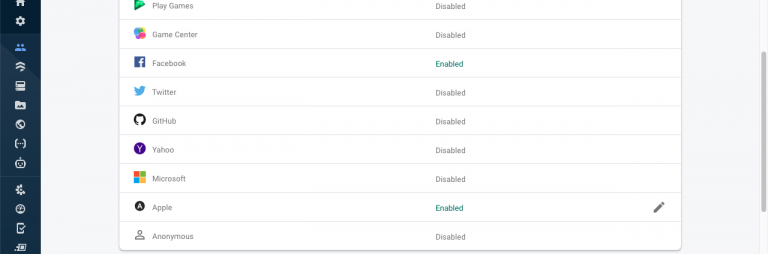
If your app sends Firebase Authentication emails to users who choose Apple's private relay email address, configure the Apple private email relay settings as described in the Firebase documentation.
Configure Apple Developer and Xcode
In Apple Developer:
- Open the app identifier for your iOS bundle ID.
- Enable Sign in with Apple.
- Save the capability changes.
In Xcode:
- Open the iOS workspace.
- Select your app target.
- Open Signing & Capabilities.
- Add Sign in with Apple.
- Run
pod installafter installing native dependencies.
Ship faster with All Access. Get the React Native templates, admin panels, updates, and launch bonuses that help you build faster.
Explore All AccessInstall Dependencies
If your app already uses React Native Firebase, you may already have the app and auth packages installed.
yarn add @react-native-firebase/app @react-native-firebase/auth
yarn add @invertase/react-native-apple-authentication
cd ios && pod install
Sign in with Apple and Firebase
Create a small auth helper that returns the Firebase credential result:
import auth from '@react-native-firebase/auth';
import appleAuth, {
  AppleAuthRequestOperation,
  AppleAuthRequestScope,
} from '@invertase/react-native-apple-authentication';

export async function signInWithApple() {
  const appleAuthRequestResponse = await appleAuth.performRequest({
    requestedOperation: AppleAuthRequestOperation.LOGIN,
    requestedScopes: [
      AppleAuthRequestScope.EMAIL,
      AppleAuthRequestScope.FULL_NAME,
    ],
  });

  const { identityToken, nonce } = appleAuthRequestResponse;

  if (!identityToken) {
    throw new Error('Apple Sign-In failed: no identity token returned');
  }

  const appleCredential = auth.AppleAuthProvider.credential(
    identityToken,
    nonce
  );

  const result = await auth().signInWithCredential(appleCredential);

  return {
    result,
    appleAuthRequestResponse,
  };
}
Then call it from your login screen:
import React from 'react';
import { Text } from 'react-native';
import appleAuth, {
  AppleButton,
} from '@invertase/react-native-apple-authentication';
import { signInWithApple } from './auth';

export function LoginScreen() {
  if (!appleAuth.isSupported) {
    return <Text>Sign in with Apple is not supported on this device.</Text>;
  }

  return (
    <AppleButton
      buttonStyle={AppleButton.Style.BLACK}
      buttonType={AppleButton.Type.SIGN_IN}
      cornerRadius={8}
      style={{ width: 220, height: 44 }}
      onPress={async () => {
        const { result } = await signInWithApple();
        console.log('Signed in user:', result.user.uid);
      }}
    />
  );
}
Save the User Profile
Apple may return fullName and email only the first time the user authorizes
your app. Save those fields immediately if your product needs them later.
import firestore from '@react-native-firebase/firestore';

export async function upsertUserAfterAppleLogin(
  result,
  appleAuthRequestResponse
) {
  const { uid, email, displayName } = result.user;
  const fullName = appleAuthRequestResponse.fullName;

  await firestore()
    .collection('users')
    .doc(uid)
    .set(
      {
        id: uid,
        email: email || '',
        displayName:
          displayName ||
          [fullName?.givenName, fullName?.familyName]
            .filter(Boolean)
            .join(' '),
        updatedAt: firestore.FieldValue.serverTimestamp(),
      },
      { merge: true }
    );
}
Also make sure your Firestore rules allow a user to write only their own profile document.
Handle Errors
Common failure points:
- Sign in with Apple is not enabled for the Apple App ID.
- The iOS bundle ID does not match the Firebase app.
- The Firebase Apple provider is not enabled.
- The identity token is missing because the user cancelled the flow.
- The user already exists with another provider and the account needs linking.
- The app tries to read name or email on a later login without saving it during the first authorization.
Use real device testing before submitting to App Review. Simulators are useful, but Apple login flows can behave differently on a signed-in physical device.
Android and Web Notes
The same Invertase library supports Android through a separate Apple web flow, but the setup is different from native iOS. If your product supports Android, decide whether Apple Login is required there or whether it should be iOS-only.
For web, use Firebase's Apple OAuth provider flow instead of this native iOS button implementation.
Useful References
- React Native Firebase authentication
- Invertase React Native Apple Authentication
- Firebase Auth with Apple on iOS
- Firebase Auth with Apple on Web
- Apple App Store Review Guidelines
- Instamobile Firebase integration docs
Looking for a custom mobile application?
Our team of expert mobile developers can help you build a custom mobile app that meets your specific needs.
Get in TouchConclusion
Apple Login in React Native is straightforward once Firebase, Apple Developer, and Xcode all agree on the same bundle ID and provider settings. The important production details are nonce handling, first-login profile persistence, strict Firestore rules, and testing on a real iOS device before App Review.