Create an E-Commerce App for iOS and Android in Minutes
Build a fully functional e-commerce app for iOS and Android in minutes using our premium React Native e-commerce template. This guide walks through setup, Firebase integration, Stripe payments, and publishing to app stores.
Overview
Here's the complete roadmap to create your e-commerce app:
- Configure your development environment
- Install npm packages
- Run the app on Android
- Run the app on iOS
- Link your own Firebase account
- Create categories & products in Firebase
- Set up Stripe Payments
- Publish app to App Store & Google Play
Looking for a custom mobile application?
Our team of expert mobile developers can help you build a custom mobile app that meets your specific needs.
Get in TouchConfigure Your Development Environment
To run React Native apps on iOS and Android, install these developer tools:
- Node.js and React Native
- Android Studio (for Android)
- Xcode (for iOS)
- Visual Studio Code (recommended for Windows users)
For a comprehensive setup guide, see our React Native Development Environment documentation.
Install npm Packages
Open a Terminal, navigate to your project directory, and run:
npm install
Windows users: Use Visual Studio Code's built-in terminal for compatibility with UNIX commands.
Running the App on Android
Ensure npm packages are installed. You'll need either a physical Android device or an Android emulator.
Mega Bundle Sale is ON! Get ALL of our React Native codebases at 90% OFF discount 🔥
Get the Mega BundleSetup
- Device: Plug in via USB cable
- Emulator: Open Android Studio → Tools → AVD Manager → Start an emulator

Run
react-native run-android
The metro bundler should start automatically. If not, open a new terminal and run npm start.
For debugging, check our React Native Errors documentation.
Running the App on iOS
Ensure npm packages are installed. You need a Mac to run iOS apps. Windows users must use a virtual machine or Apple computer.
Install Dependencies
Install Cocoapods and Xcode, then:
cd ios && pod install
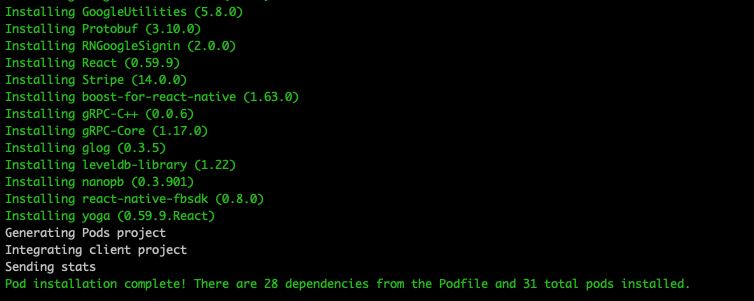
Run
Open ios/Shopertino.xcworkspace in Xcode, select a device/simulator, and run the app.
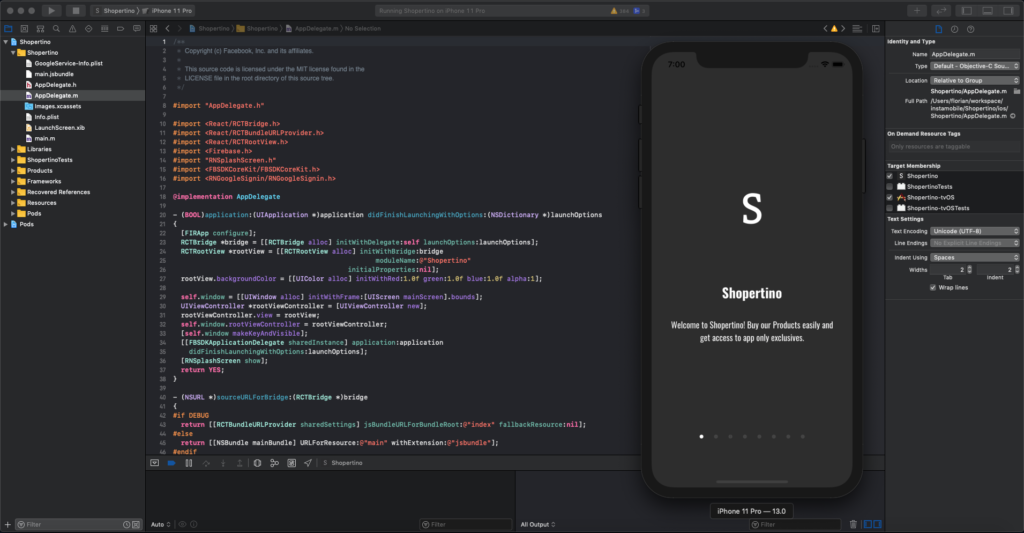
Link Your Own Firebase Account
By default, the app displays demo products and sends test purchases to our Stripe account. To make it production-ready, link your own Firebase and Stripe.
Setup Firebase
- Create a Firebase account and project
- Create an app within that project
- Download the config files:
- iOS:
GoogleService-Info.plist→ override inios/Shopertino/ - Android:
google-services.json→ override inandroid/app/
- iOS:
- Enable Firebase Authentication, Firestore, and Storage with public read/write rules
For detailed setup, see our Firebase Integration tutorial.
Run the app again. It should now be empty. Create a new user and verify it appears in your Firebase Console.
Create Categories & Products in Firebase
Add your catalog to Firestore via the Firebase Console.
Mega Bundle Sale is ON! Get ALL of our React Native codebases at 90% OFF discount 🔥
Get the Mega BundleAdd Categories
Create a collection named shopertino_categories with the following structure:
| Field | Type | Example |
|---|---|---|
| id | string | "electronics" |
| name | string | "Electronics" |
| photo | string | "https://..." |
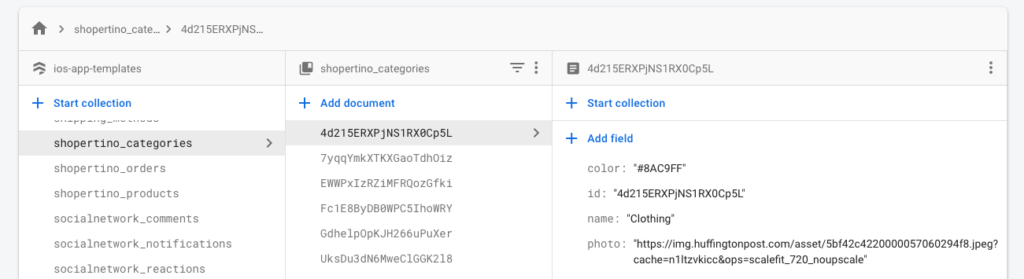
Important: The id field must match the category identifier exactly.
Add Products
Create a collection named shopertino_products with fields for product details:
| Field | Type | Example |
|---|---|---|
| name | string | "Laptop" |
| price | number | 999.99 |
| category | string | "electronics" |
| photo | string | "https://..." |
| description | string | "High-performance laptop" |
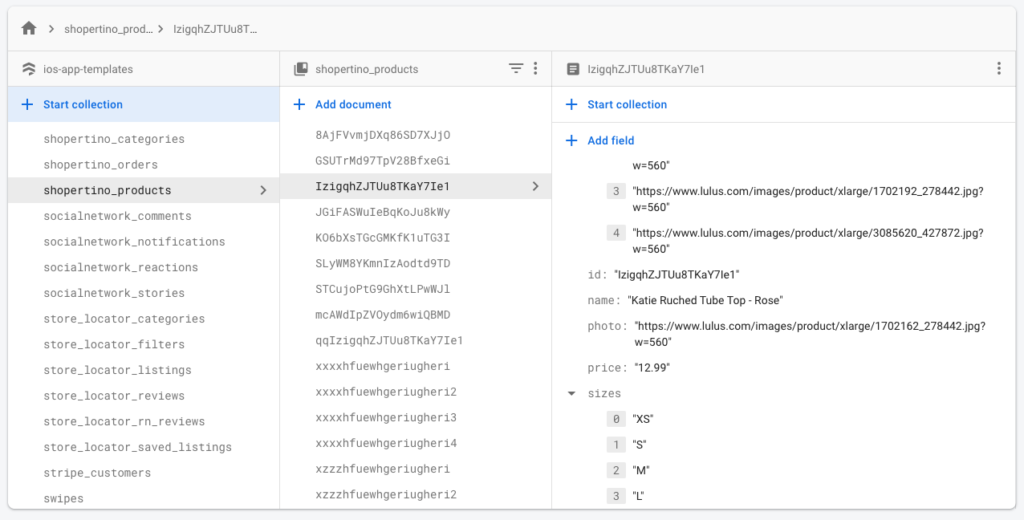
Set Up Stripe Payments
To accept payments, set up a Stripe account and get your API keys.
Update Configuration
- Open
src/constant.jsand add your Stripe publishable key - Open
stripeServer/.envand add your Stripe secret key
Backend Server
You need a server to securely process payments. Follow our Stripe Integration for React Native guide for complete setup.
Next Steps
Your e-commerce app is now ready! Customize branding, add more products, and publish to the App Store and Google Play.
Questions? Reach out—we're here to help!